Monny's Condo FAQ

Any doubt regarding the FAQ? Contact me on discord! "monsterwhore." Yes, the dot is part of it.
Carrd updated: March 2nd, 2026.
Head back to the main hub here.
How do I save a Condo to play with friends?
You can save a condo through Roblox Studio. For this, take in mind two things:1) This is NOT the same as publishing. Publishing is only done to make games public (aka, for EVERYONE in Roblox), and requires special handling, because publishing otherwise is a 100% guarantee that you'll be banned.
2) You do NOT need to save the file if you plan to use the file by yourself. You can simply 'Test' the file locally. You only need to save the file if you want to play with other people.
Do also note: Not every file is safe. Some files (Goat v2.6, as of the date I'm writing this) are blacklisted, which means that trying to team test will result in a warning/ban for misusing roblox systems. Consult with people if files are safe before trying to teamtest with them. Or if you want to test if the file is safe yourself, use an alternative account and try to teamtest the file. If you get an instant warning/ban, you'll know it isn't safe.
With all that information now known, here's the step by step tutorial.
Saving A Condo File
First, you must create a new experience. You do so by heading to the upper left tab when you open studio. Head to File, then press New.
This will create a blank baseplate experience.
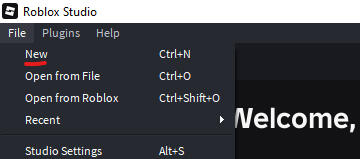
Creating the experience should have opened up the baseplate.
Now, head to File and Save to Roblox.
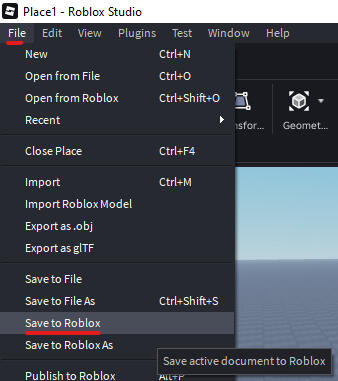
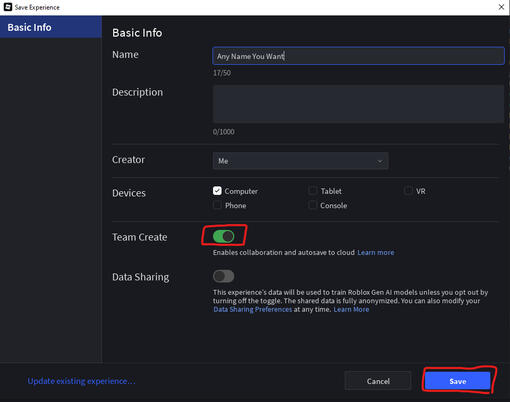
Saving to Roblox will open up a new window.
The important parts here is that you must have Team Create enabled. Any other sections are irrelevant, but I'd recommend disabling Data Sharing as precaution.
After that, you can Save by clicking the blue button.
Now, open your condo file.
Make sure that you've closed the Roblox Studio tab that has the baseplate in it.
Following a similar procedure, you want to Save to Roblox As.
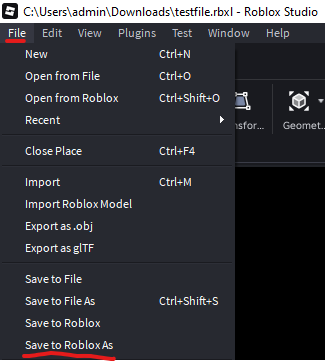
This will open up a new window.
Select the baseplate that you made just a few steps back.
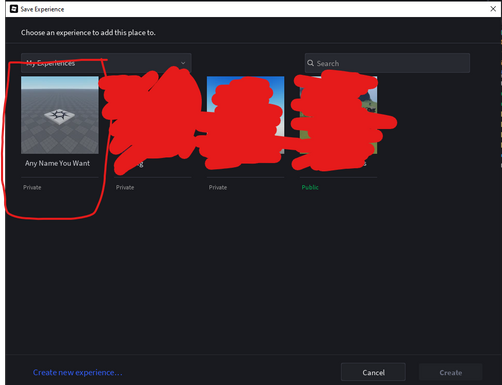
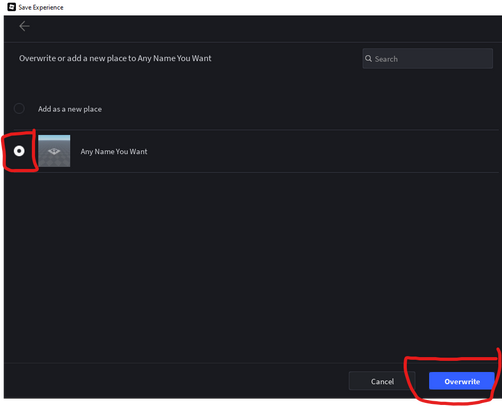
Make sure to select the baseplate experience so that your condo file overwrites it.
Once you've done so, you can click the Overwrite button.
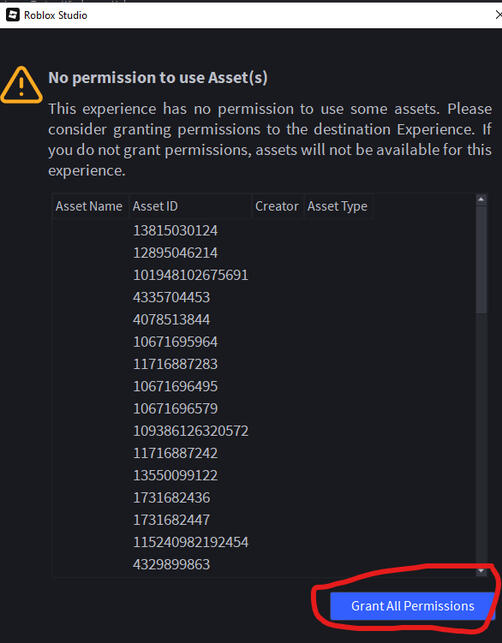
You'll get a window about "No permission to use Asset(s)".
Simply Grant All Permissions by clicking the button.
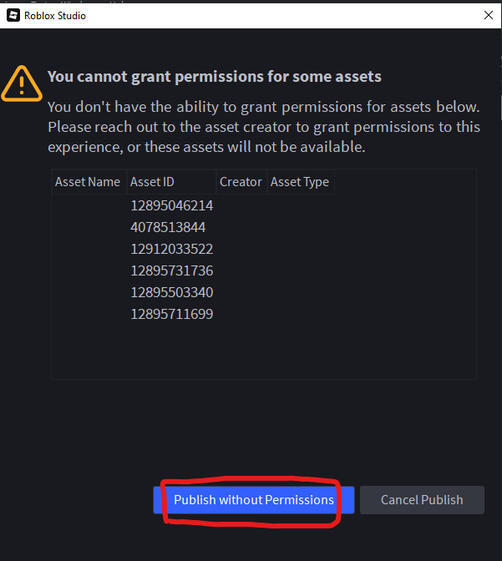
Afterwards, you'll get an additional window.
Click Publish without Permissions.
Despite the name, this isn't actually 'publishing'. It's just scary Roblox wording. You're still only saving to Roblox.
This should be the last step before your condo file is successfully saved to Roblox.
Inviting Friends through Team Collaborate
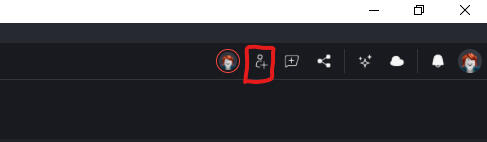
To invite friends, you must click the "Collaborate" button on the top right of Roblox Studio, inside your Condo file.Inside the Collaborate tab, simply add your friend as an Editor.
After you do, simply Save.
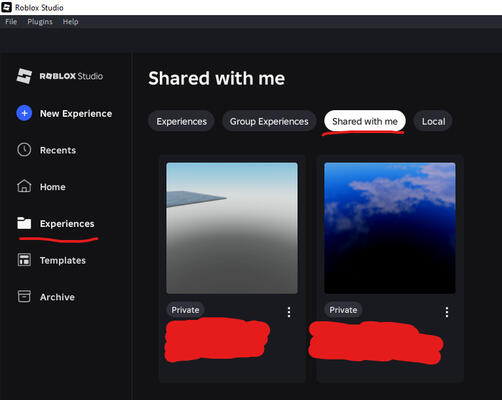
Anyone you invite as Editor will be able to join you by accessing the "Shared with me" tab in the Roblox Studio menu.
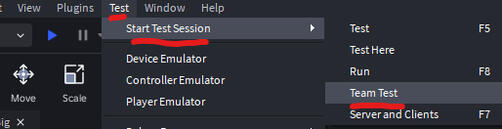
To start a Team Test, simply head to
Test -> Start Test Session -> Team Test.
Anyone you invite will have to do the same to join the session you're in.If you want to test the file by yourself, you can do so by pressing Test (F5) rather than Team Test.